A point-of-sale that works even when the internet doesn't.
Offline POS is a desktop point-of-sale built for real shops — fast catalogue, cash-drawer discipline, customer credit, inventory and reports, all stored locally on your own machine. Optional FBR invoice reporting is built in for Pakistani retail.

Everything a counter needs, nothing it doesn't.
Most POS software assumes a fast connection, a monthly bill and a cloud account. Offline POS takes the opposite bet: your shop's data belongs on your shop's computer, and the till should keep ringing whether or not the WiFi is up. Here's a tour of what's inside.
- Works fully offline
- Cash register & shifts
- Customer credit ledger
- Urdu & English (RTL)
- Role-based access
- Optional FBR reporting
Dashboard
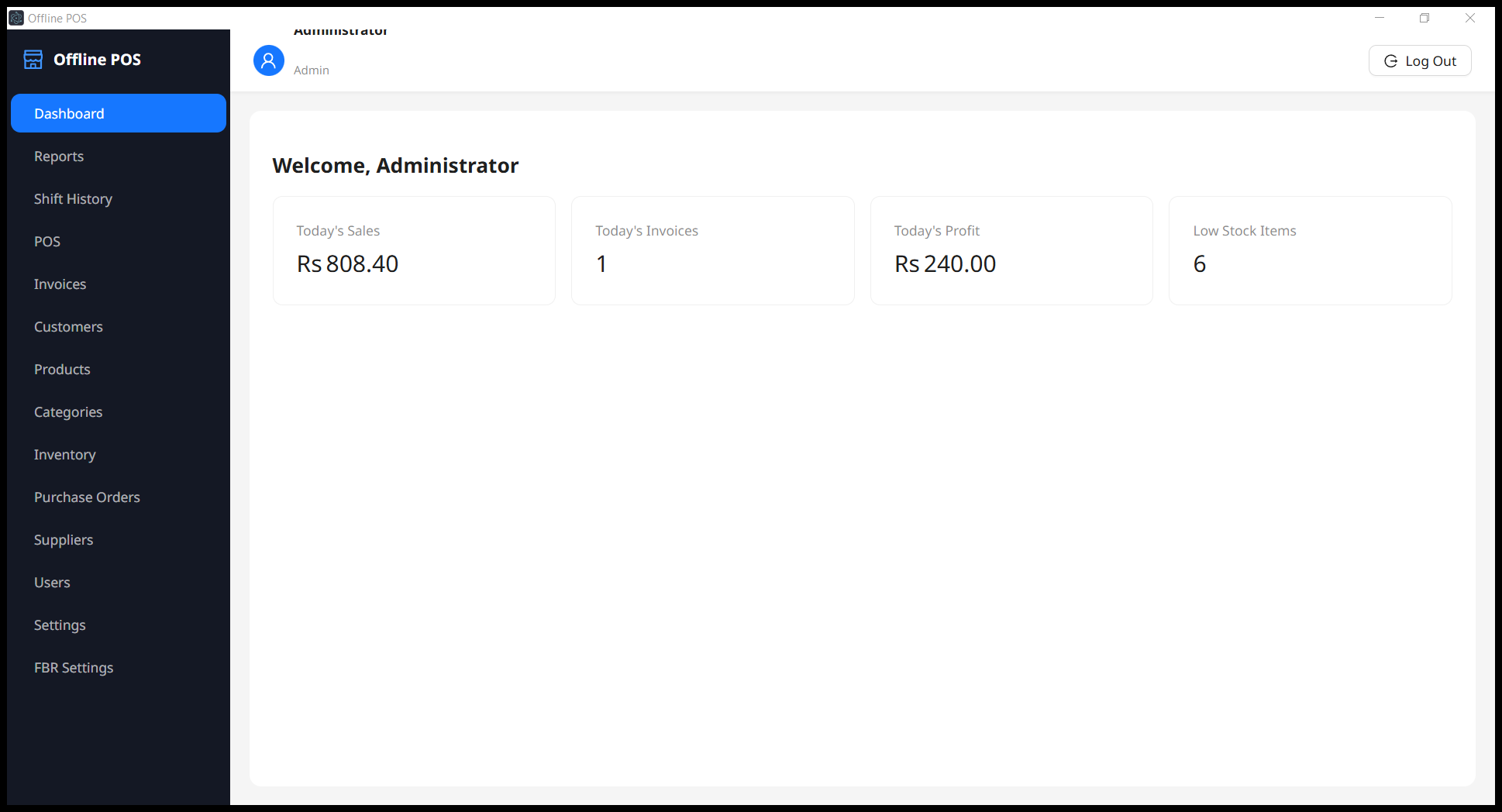
The moment you sign in, the dashboard answers the question every shopkeeper asks first: how are we doing today? Four live tiles summarise the day — total sales, number of invoices, profit earned, and how many products have fallen to low stock.
Everything is computed locally from your own data, so it loads instantly even with no internet connection.
Reports & Analytics
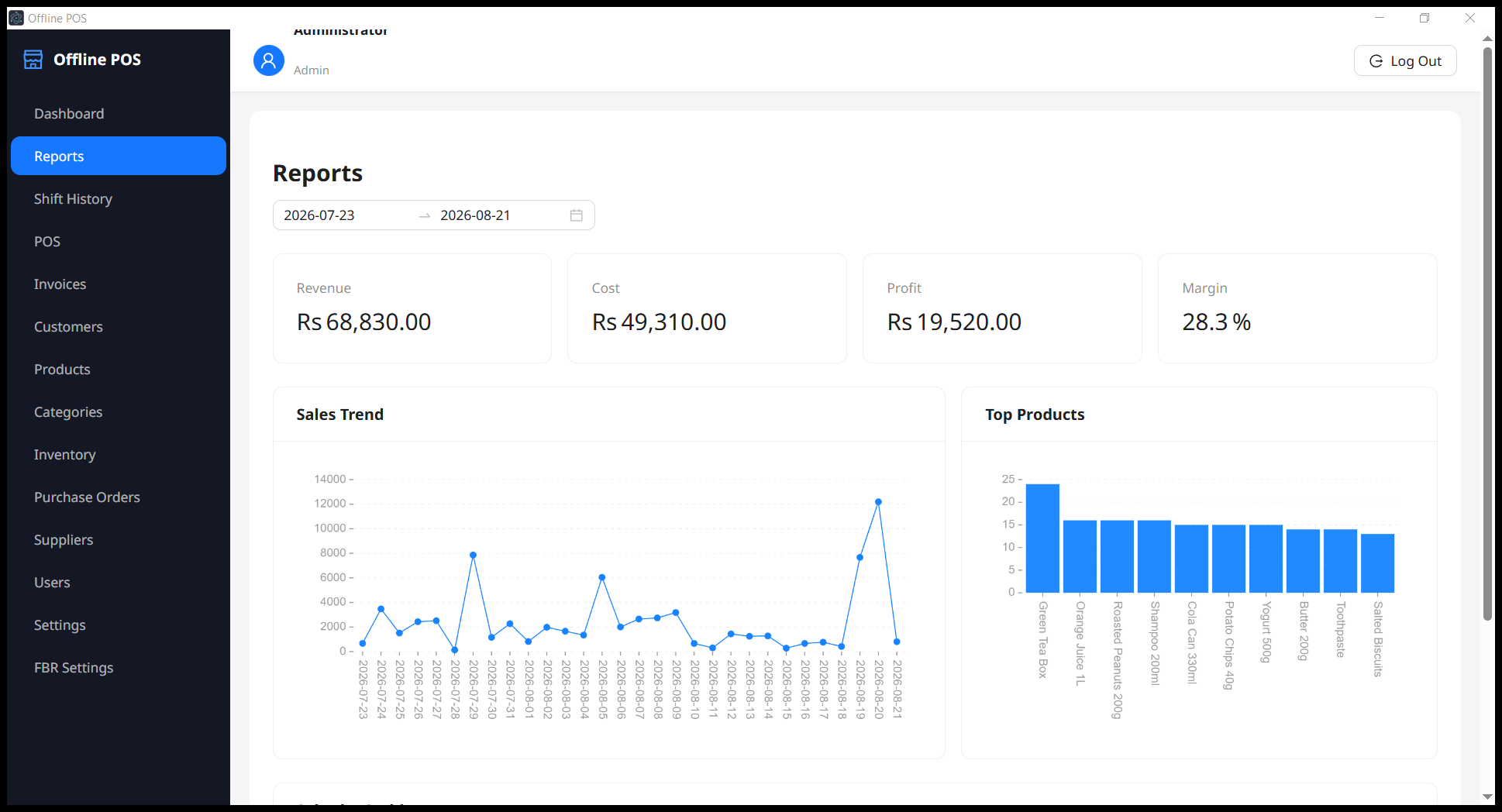
Pick any date range and the Reports page rebuilds a full picture of the business: revenue, cost, profit and margin across the period, a day-by-day sales trend line, and a ranked top products chart so you can see what actually moves.
It turns a month of quiet, offline sales into the kind of insight that usually needs a spreadsheet and an afternoon.
Cash Register & Shifts
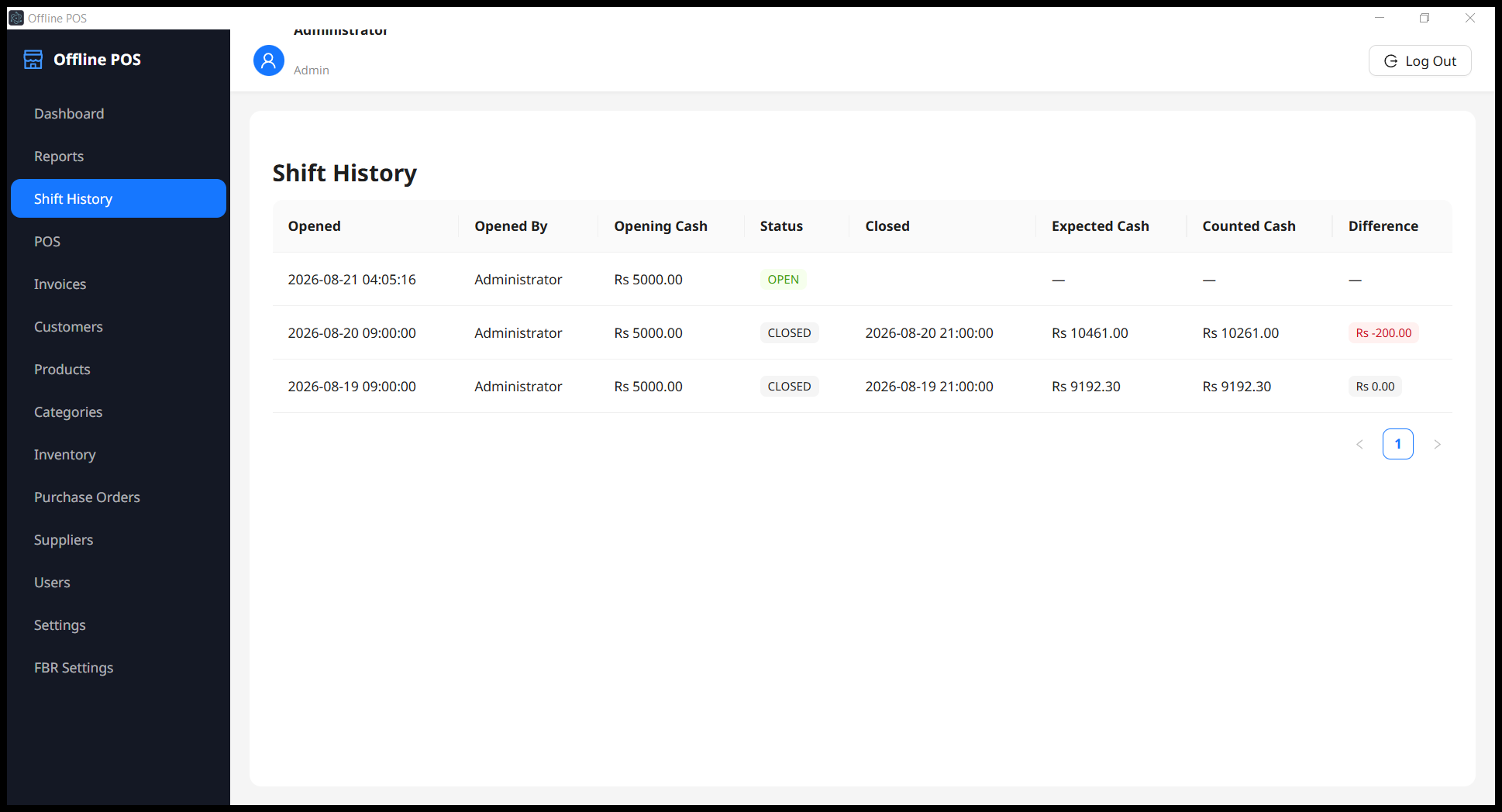
Retail runs on cash, and cash needs a paper trail. Every till session is recorded: who opened it, the opening float, when it closed, the expected cash versus what was actually counted, and the difference — highlighted in red when the drawer doesn't balance.
It's the difference between “the money looks about right” and knowing, to the rupee, where every shift stood.
Point of Sale
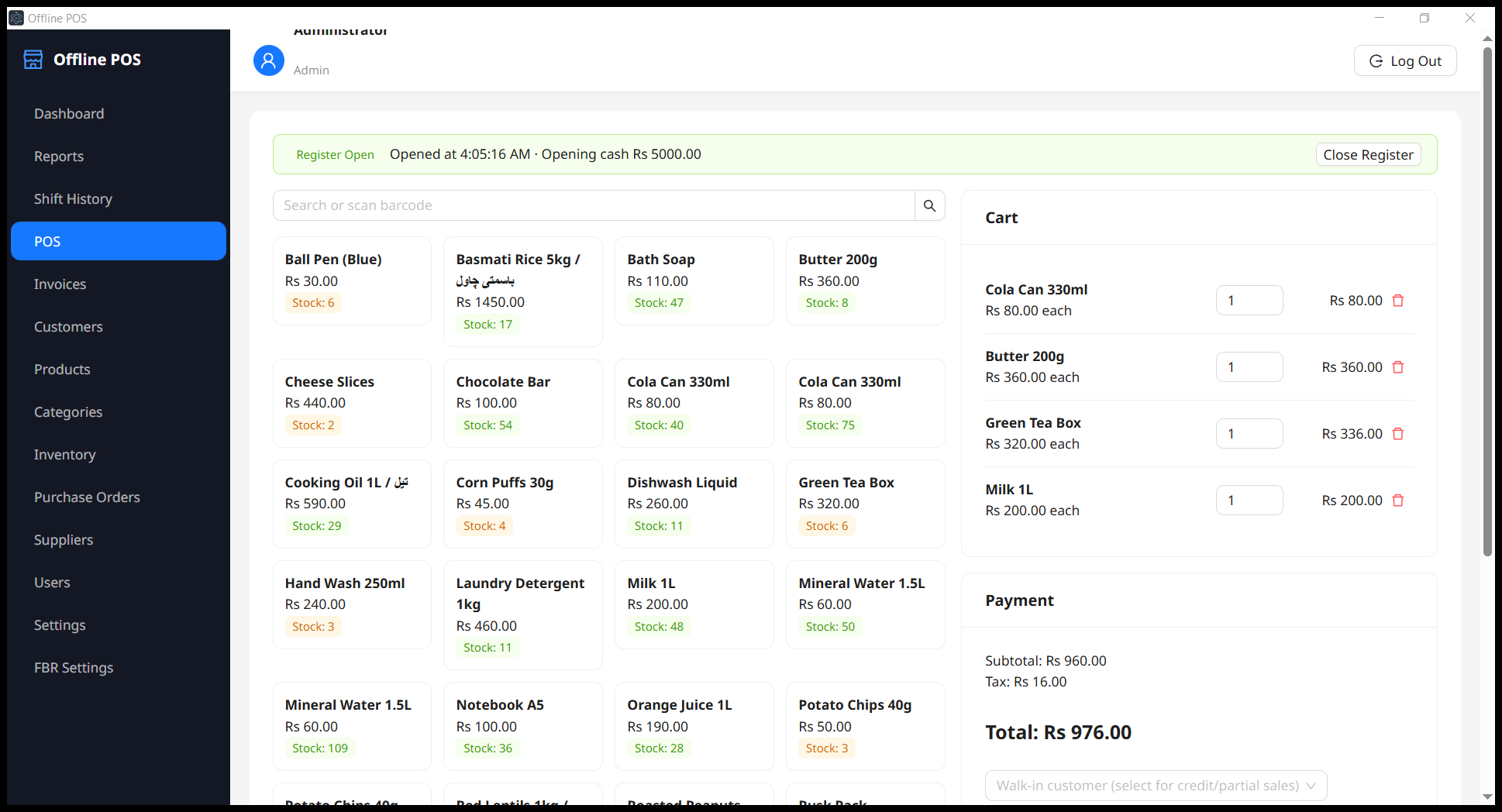
This is where the shop lives. Tap products to build a cart, scan a barcode, and watch the subtotal, tax and total update in real time. Sales can be settled in cash or assigned to a customer as credit.
The register must be open to sell — a small guardrail that keeps every transaction tied to an accountable shift.
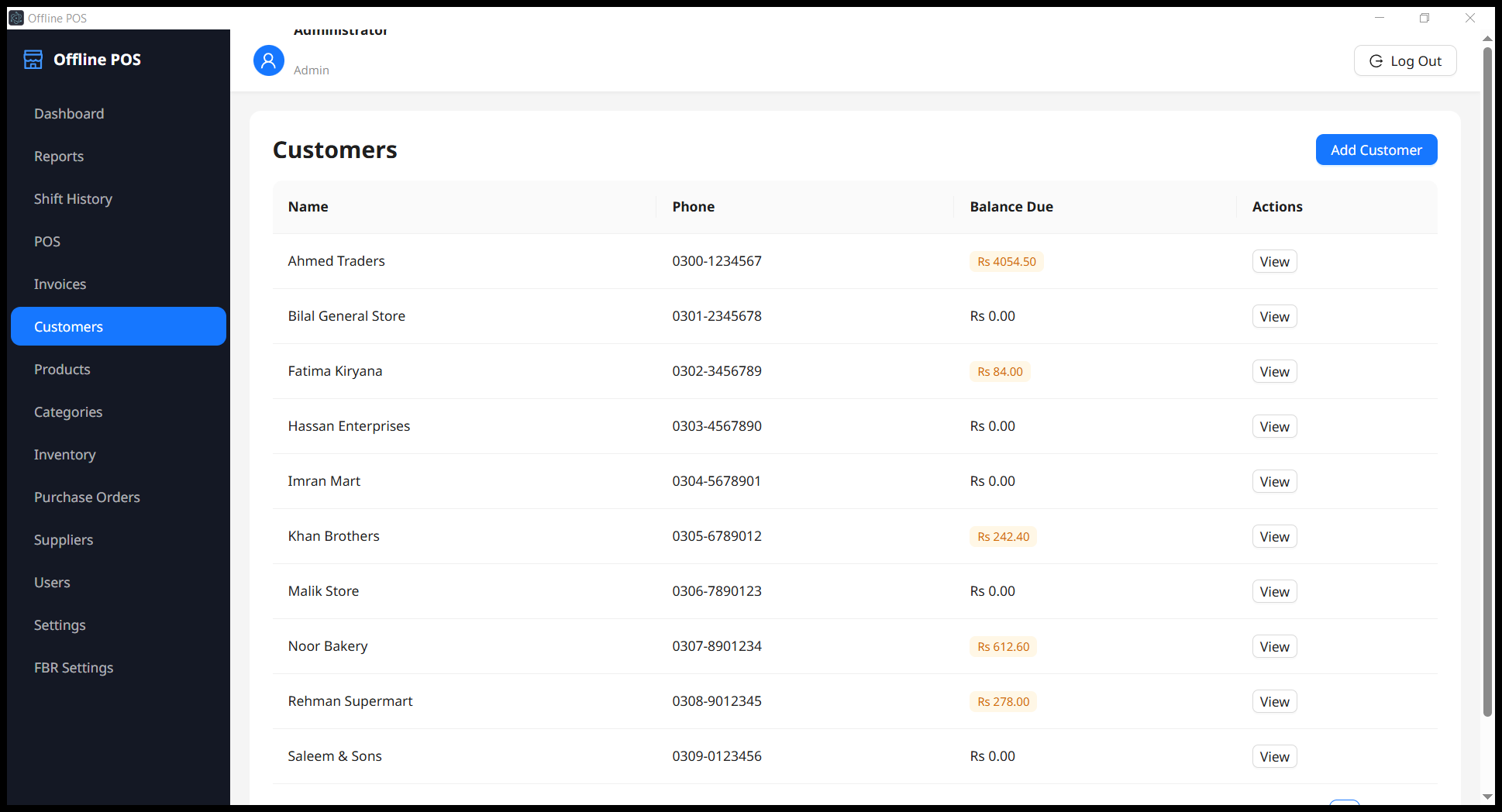
Customers
Local retail is built on regulars and on udhaar — credit. The customer list keeps a running balance for each account, so you always know who owes what before you hand over more stock.
Balances update automatically from credit sales and payments, keeping the ledger honest without any manual bookkeeping.
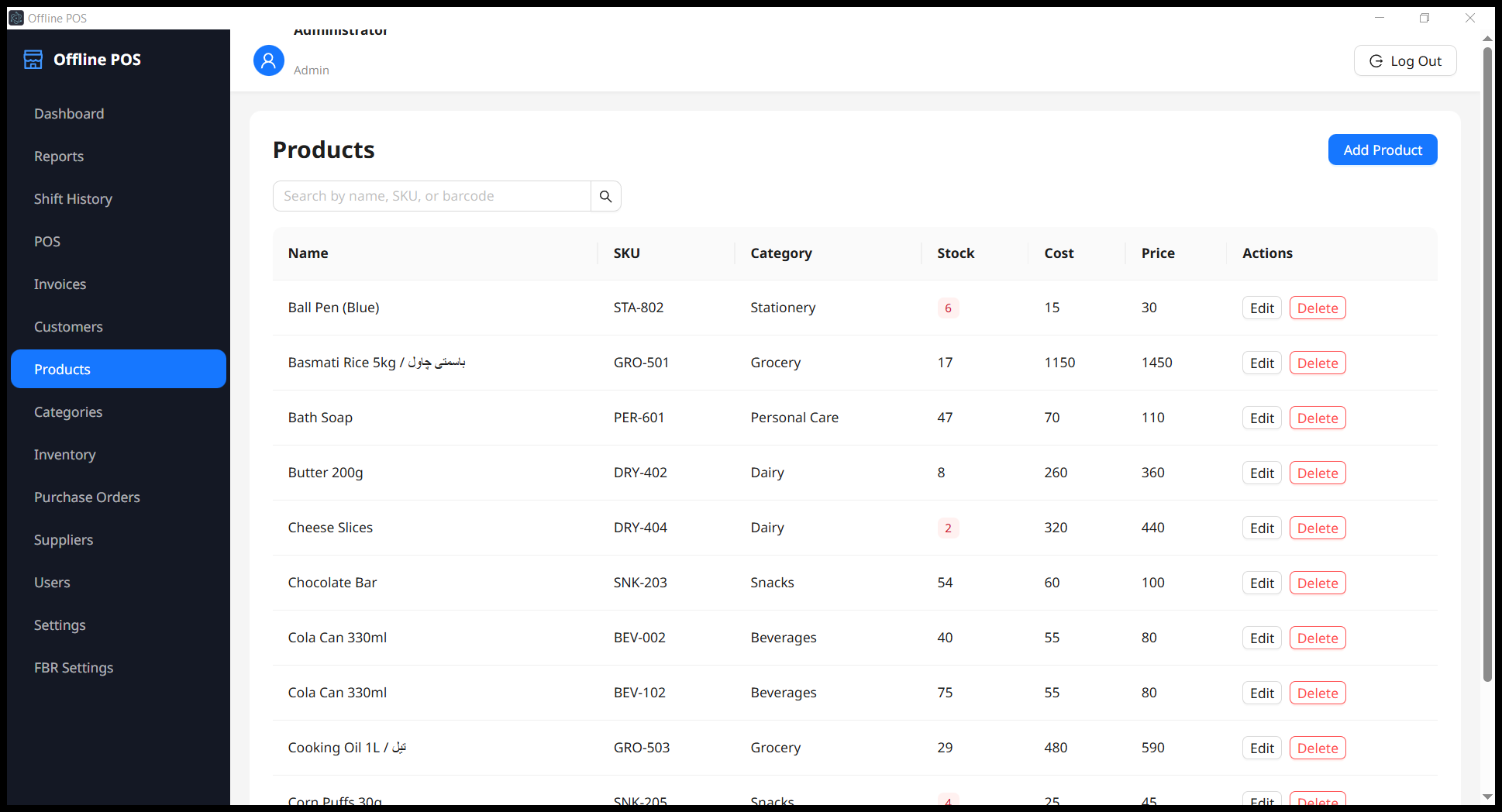
Products
A clean, searchable catalogue with SKUs, categories, live stock counts, cost and sale price. Low-stock items are flagged right in the list so reordering never sneaks up on you.
Product names support Urdu and English side by side — notice “Basmati Rice 5kg / باسمتی چاول” — so the catalogue speaks your customers' language.
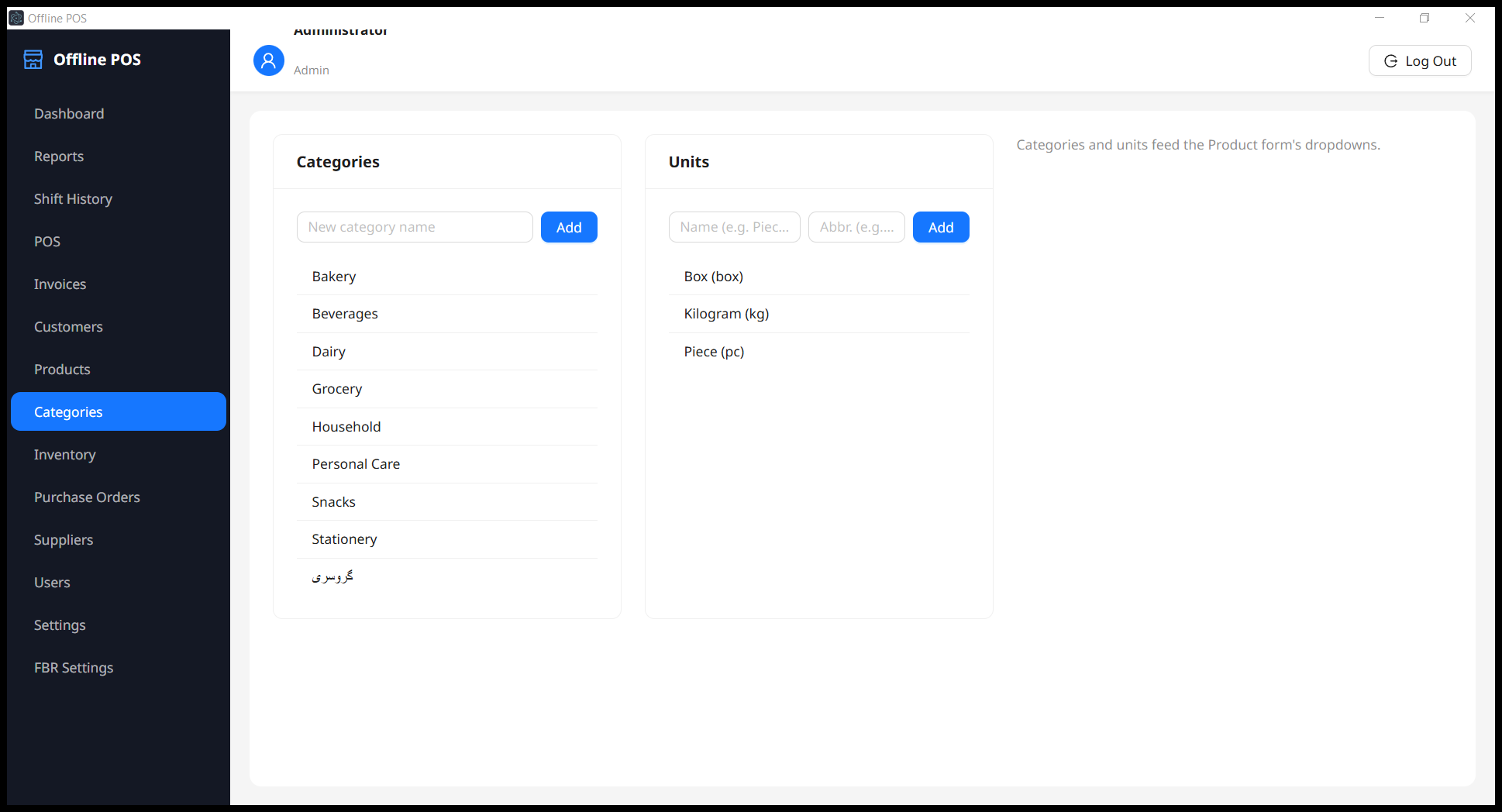
Categories & Units
Organise the catalogue with categories and units of measure — pieces, kilograms, boxes — that feed straight into the product form's dropdowns.
Full right-to-left support means a category can be named گروسری and render perfectly, no workarounds required.
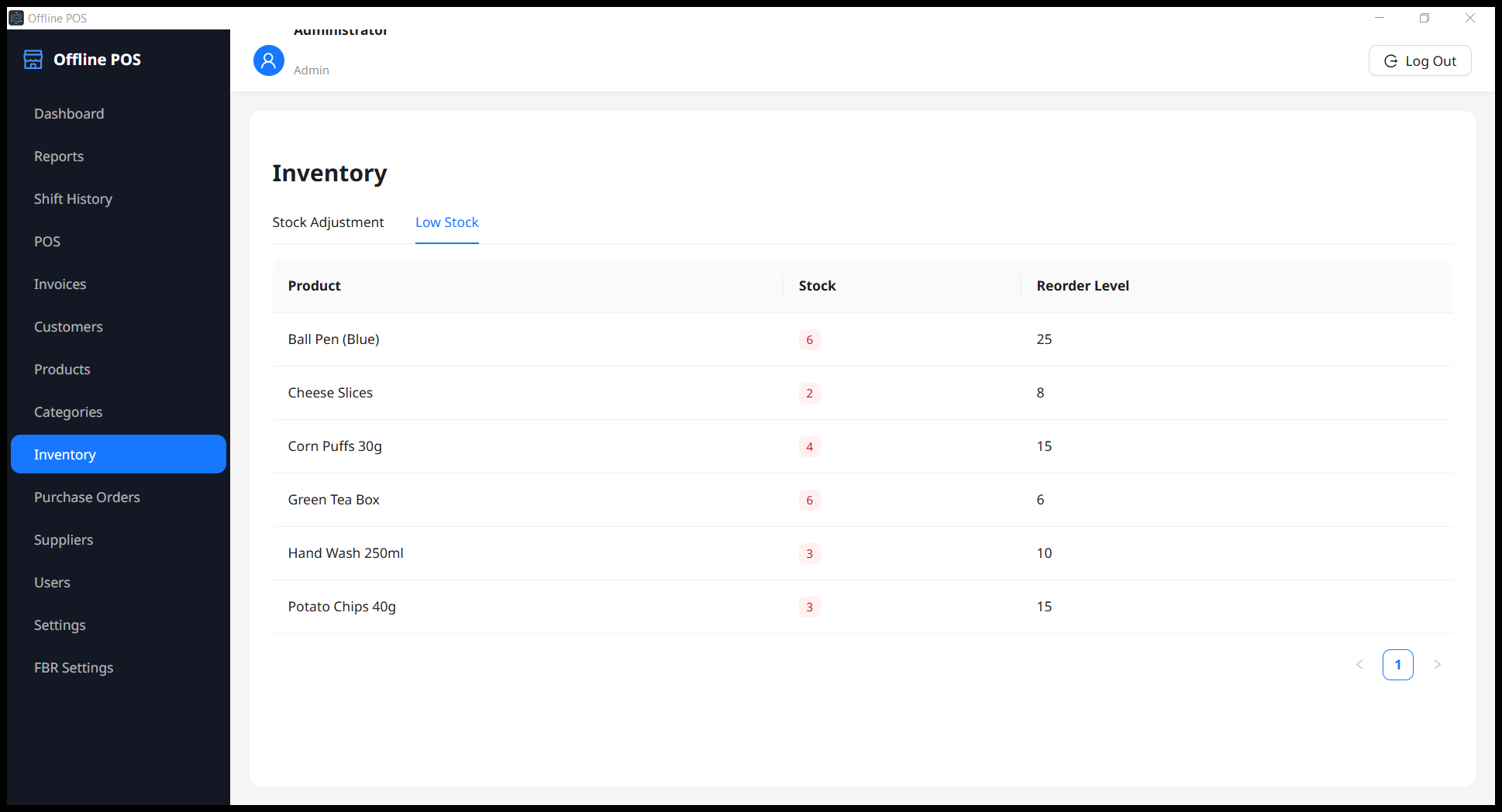
Inventory & Low Stock
Two tools in one place: a Stock Adjustment tab for recounts, damages and corrections that write to a proper stock ledger, and a Low Stock tab that lists every product sitting at or below its reorder level.
It's your shopping list for the next supplier visit, generated automatically from real sales.
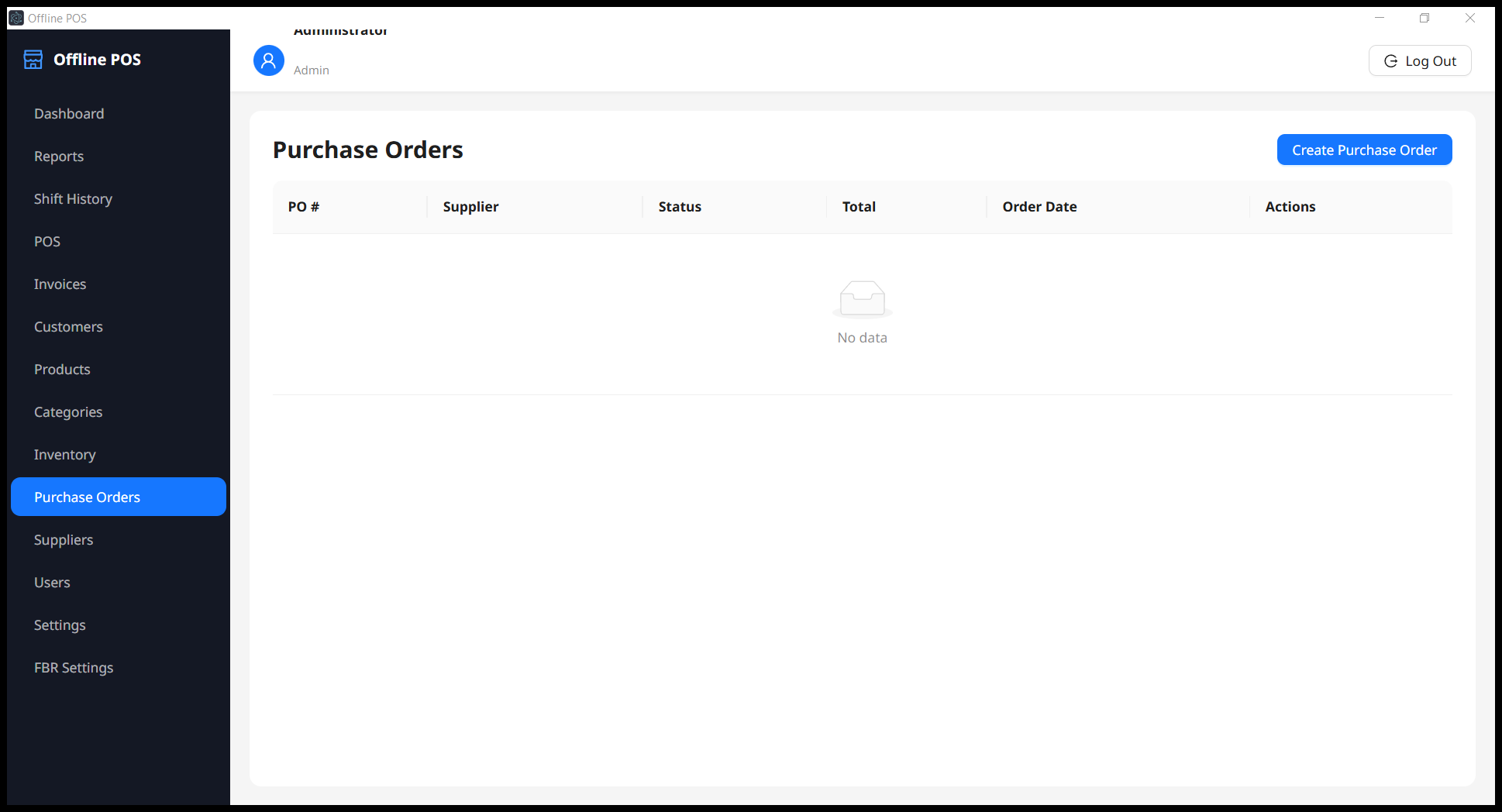
Purchase Orders
Raise purchase orders against your suppliers, track their status, and receive stock against them so incoming inventory flows into the same ledger the shop floor sells from.
One consistent record from “we need more” to “it's on the shelf.”
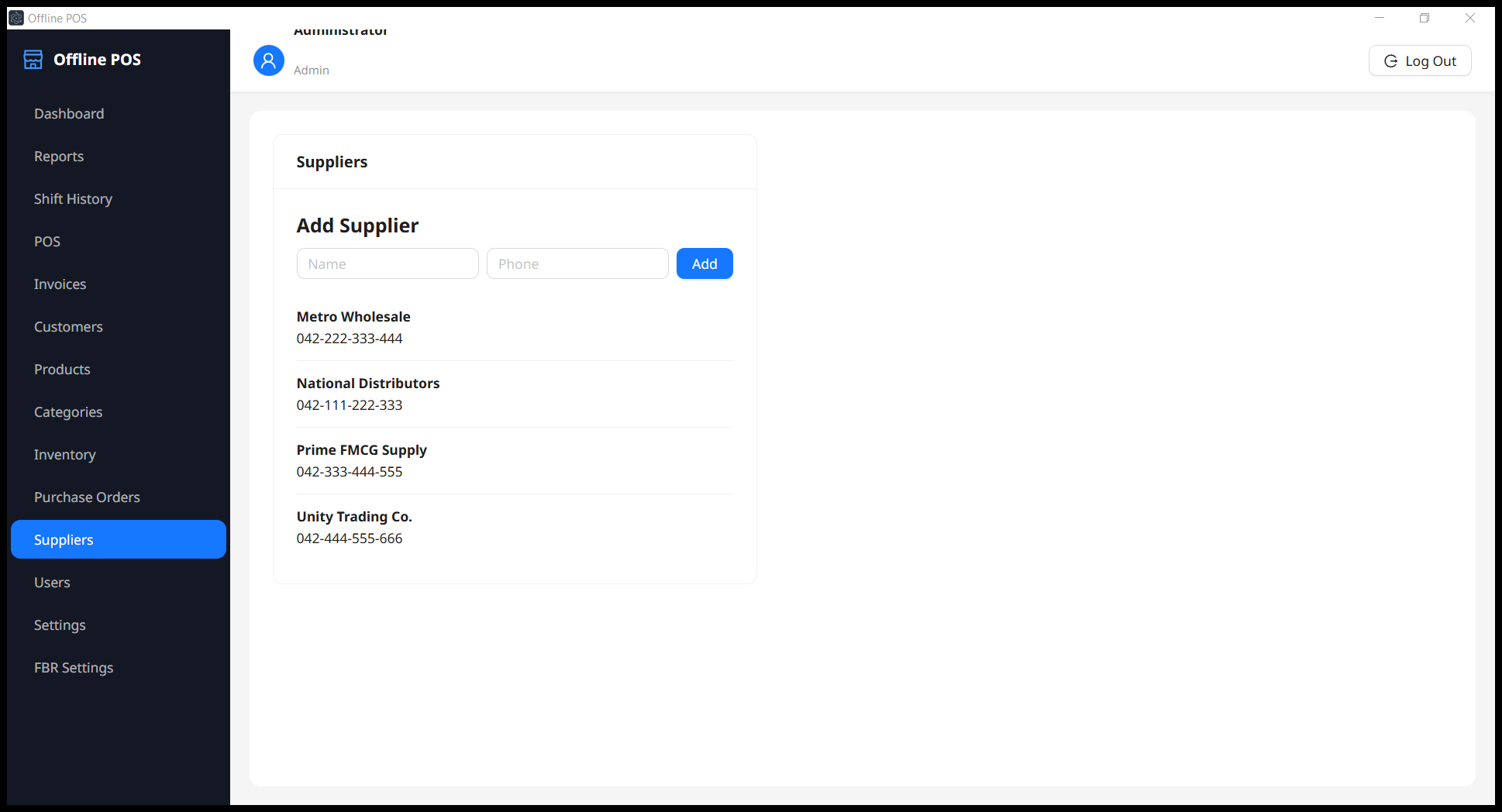
Suppliers
Keep every distributor and wholesaler in one address book, ready to attach to purchase orders. Adding a supplier is a two-field affair — name and phone — and they're instantly available across procurement.
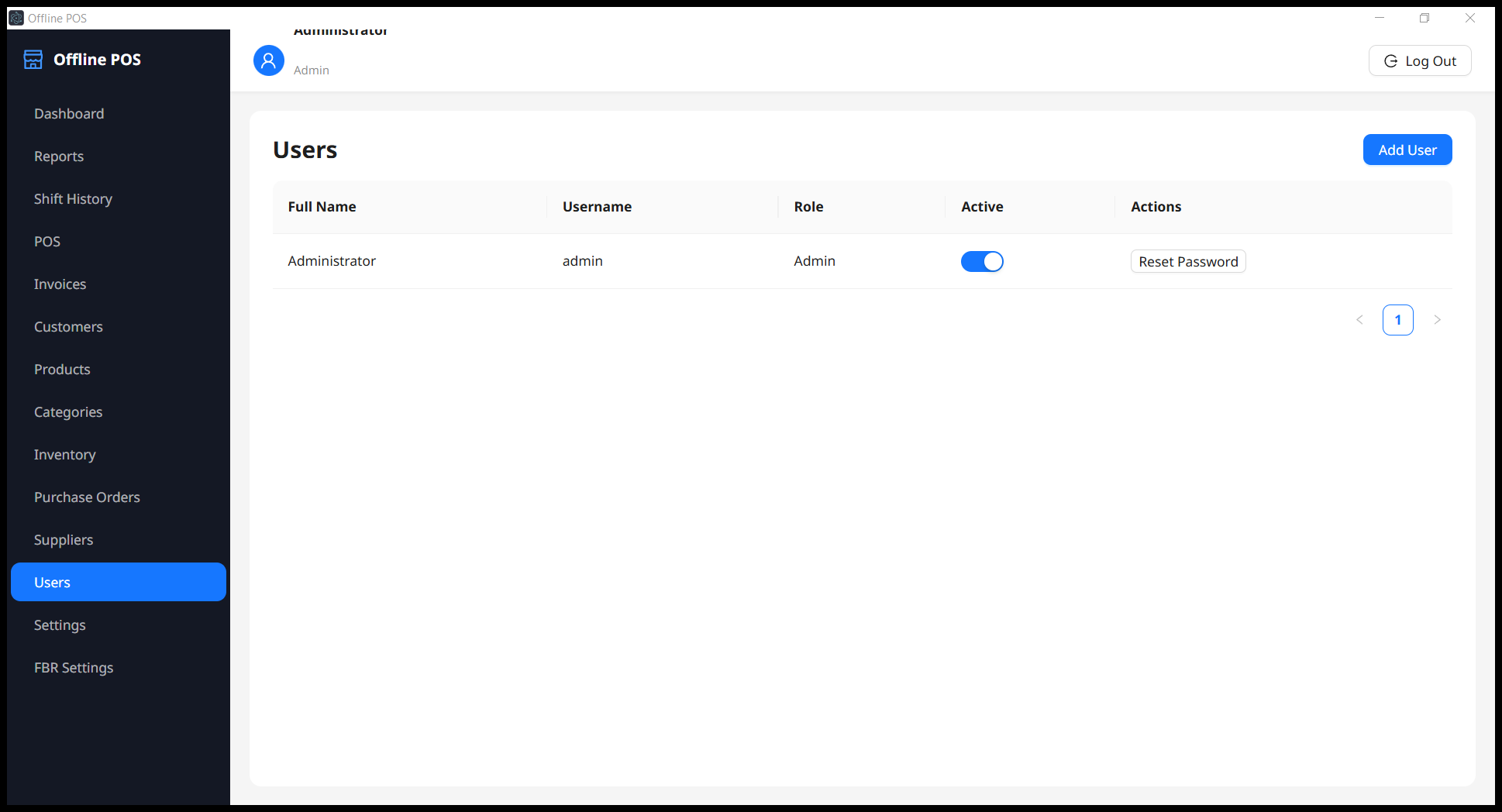
Users & Roles
Add cashiers and managers, assign roles, toggle accounts active or inactive, and reset passwords — all from one screen. Role-based permissions decide who can see reports, void sales, manage settings or touch the FBR configuration.
The owner keeps the keys; staff get exactly the access they need and nothing more.
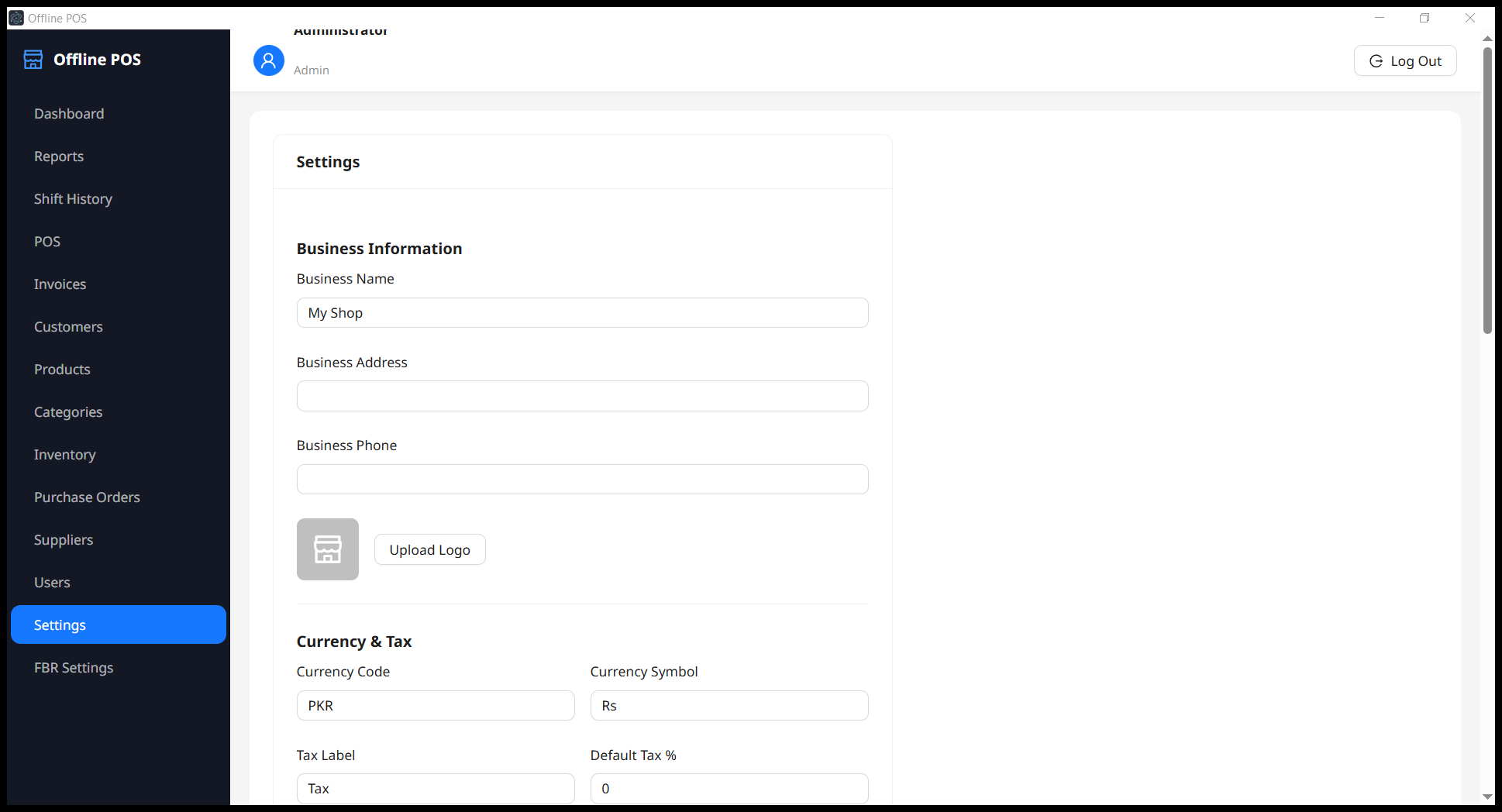
Settings
Set your business name, address and phone, upload a logo for receipts, and configure currency and tax to match how you actually trade — PKR and “Rs” out of the box, changeable in seconds.
Change the currency symbol once and every money value across the app follows.
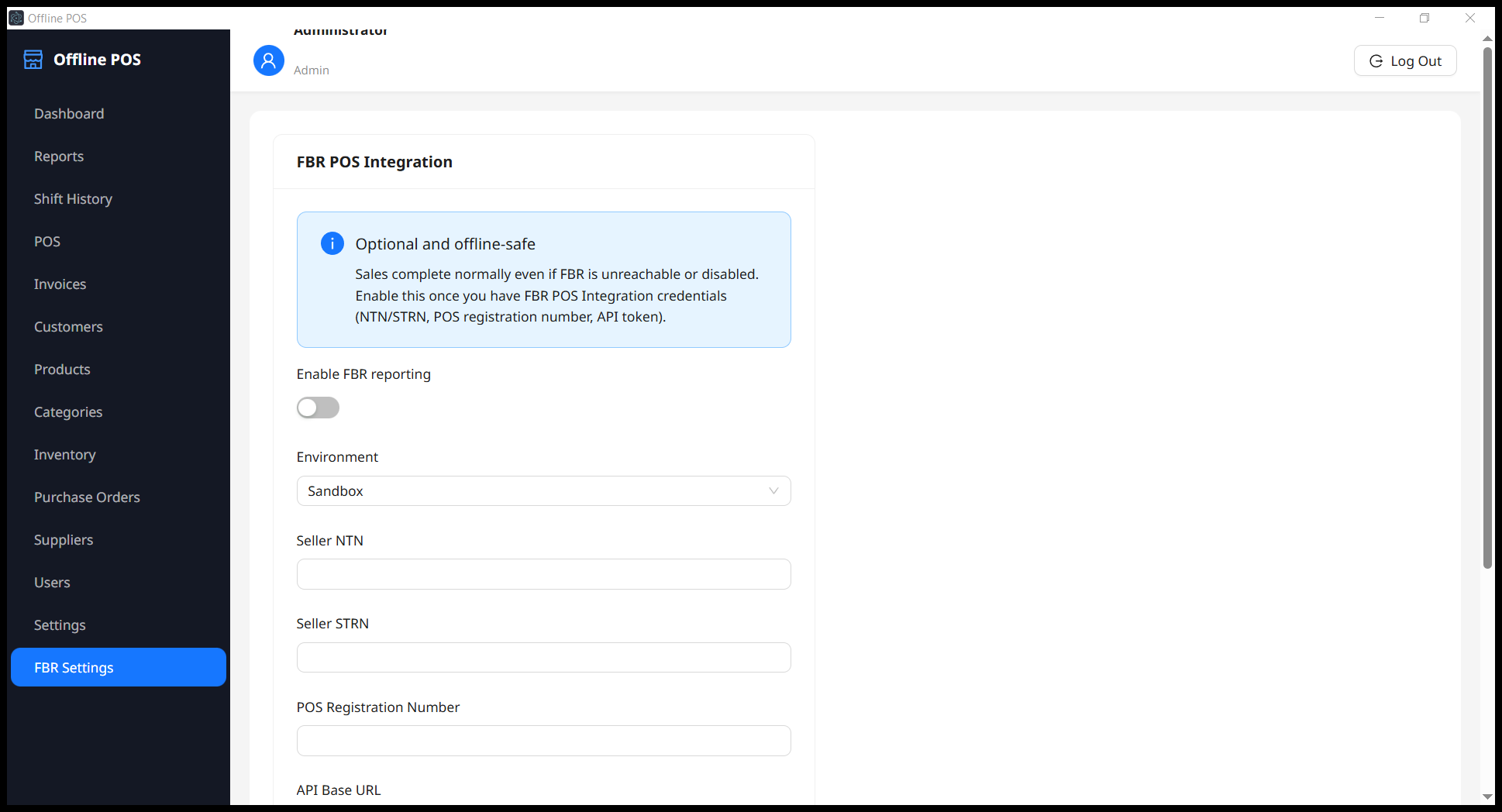
FBR POS Integration
For businesses that need it, the app can report invoices to Pakistan's FBR POS system — with sandbox and production environments, seller NTN/STRN and POS registration fields.
Crucially, it's optional and offline-safe: sales always complete normally even if FBR is unreachable or disabled. Compliance never gets in the way of serving a customer.
How to use it
From downloading the application to completing your first sale and reconciling your shift, follow these seven steps.
1. Download & Install
Download the Windows .exe installer from the link below:
Download POS Software for Windows
Once the download is complete:
- Open the downloaded
.exefile. - Follow the installation instructions.
- Complete the installation.
- Launch the POS application from your desktop or Start Menu.
The application runs locally on your computer and does not require an internet connection, account signup, or cloud connection.
Need the source code? The Windows download contains the ready-to-use application. If you need the source code for development, customization, or integration, contact us through the details in the Need Help, Customization, Source Code, or Training? section below.
2. Sign In
After launching the application, you will see the login screen.
Use the default administrator credentials:
- Username:
admin - Password:
admin123
After your first login, immediately change the default password from Users → Reset Password to secure your account.
3. Set Up Your Shop
Go to Settings and configure your business information.
You can enter:
- Business name
- Business logo
- Currency
- Tax settings
Next, create your product Categories and Units, then add your products under Products to build your catalogue.
4. Open the Cash Register
Go to POS and open the cash register.
Enter your opening cash float before starting sales. A register shift must be open before you can process transactions. This connects each sale with the active cash register and shift.
5. Ring Up a Sale
Once the register is open, you can start processing sales.
- Select or scan a product.
- Add the required products to the cart.
- Review the items and quantities.
- Select the payment method.
- Choose Cash for a cash transaction.
- Select a Customer when processing a credit sale.
- Complete the transaction.
After the sale, inventory is updated automatically and, when enabled, FBR reporting is also updated.
6. Close & Reconcile Your Shift
At the end of the day or shift, go to the register closing option.
- Count the physical cash in the drawer.
- Enter the counted amount.
- Close the register.
- The software compares the expected cash with the counted cash.
- Any difference is recorded in Shift History.
This allows you to keep track of cash discrepancies and maintain an accountable record of each shift.
7. Continue Managing Your Business
After completing the initial setup, you can continue using the application for your daily shop operations.
Use the available modules to manage your products, inventory, sales, customers, cash register, and reports according to your business workflow.
Need Help, Customization, or Training?
Need help installing or configuring the POS software? Want to customize it for your business? We can help with installation, customization, troubleshooting, feature modifications, source-code access, and staff training.
If you need the source code, want a custom feature, or need assistance setting up the software for your shop, contact us directly.
Contact us:
- 📧 Email: shehzadmunir.dev@gmail.com
- 📞 Phone: +92 324 0671597
We're happy to discuss your requirements and help you get the most out of the POS system.
Stay ahead of the curve.
This insight was curated by ToolNova. We explore the intersections of efficiency and technology so you don't have to.